Now, it is a matter of just a second to count number of words, characters, sentences, paragraphs, and reading time with the help of our free PDF word counter. You just need to upload PDF file press the button. Your result will be in less than second.
PDF & Document Word Counter
Count words, characters, sentences, paragraphs, and reading time instantly from PDF, Word, or Text files.
Drag & Drop your file here
or
Supported formats: PDF, Word (DOC/DOCX), TXT
Processing document…
Introduction
Our Document Word Counter is a powerful, easy-to-use tool that helps you analyze text content from various document formats. Whether you’re a writer checking your manuscript length, a student verifying assignment requirements, or a professional analyzing reports, this tool provides valuable insights into your documents.
Clean and Modern HTML Structure
This converter is built using HTML, CSS, and JavaScript, with PDF.js as the core PDF parsing library. The HTML structure is clean and semantic. It starts with a `<head>` section that sets the page charset, viewport, and page title.
Inside the `<body>`, there’s a container div that centers the whole tool on the page. The design follows modern UI trends: a centered card with subtle shadows, smooth hover states, rounded buttons, and clear call-to-action elements.
Getting Started
To begin using the Document Word Counter, simply open the tool in your web browser. No installation or registration is required – it works completely in your browser.
Three Ways to Count Words
1. Uploading Files
Supported file formats:
- PDF (.pdf)
- Microsoft Word (.doc, .docx)
- Plain text (.txt)
How to upload:
- Click the “Browse Files” button to select a document from your computer
- Or drag and drop your file directly onto the upload area (marked with “Drag & Drop your file here”)
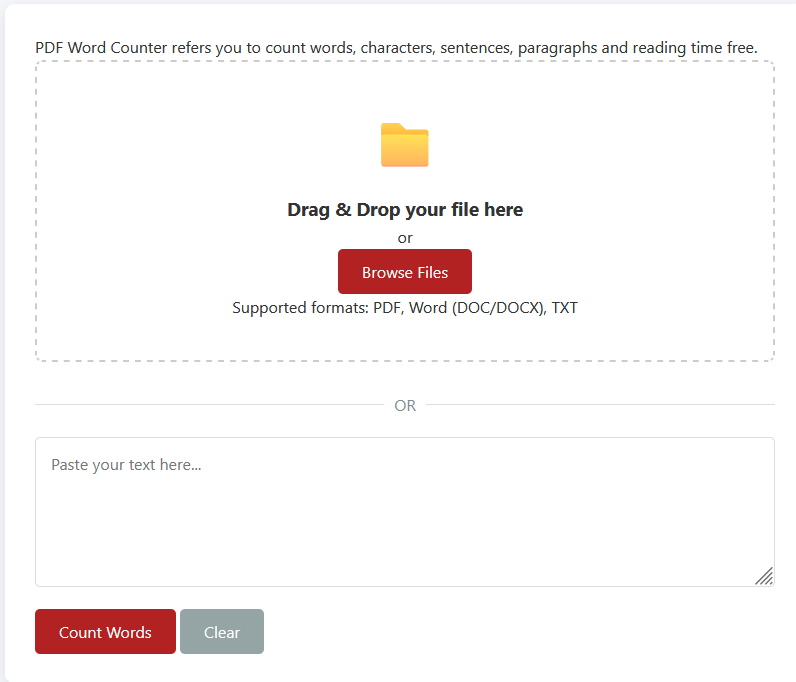
The tool will automatically process your document and display detailed statistics.
2. Drag and Drop
For quick analysis:
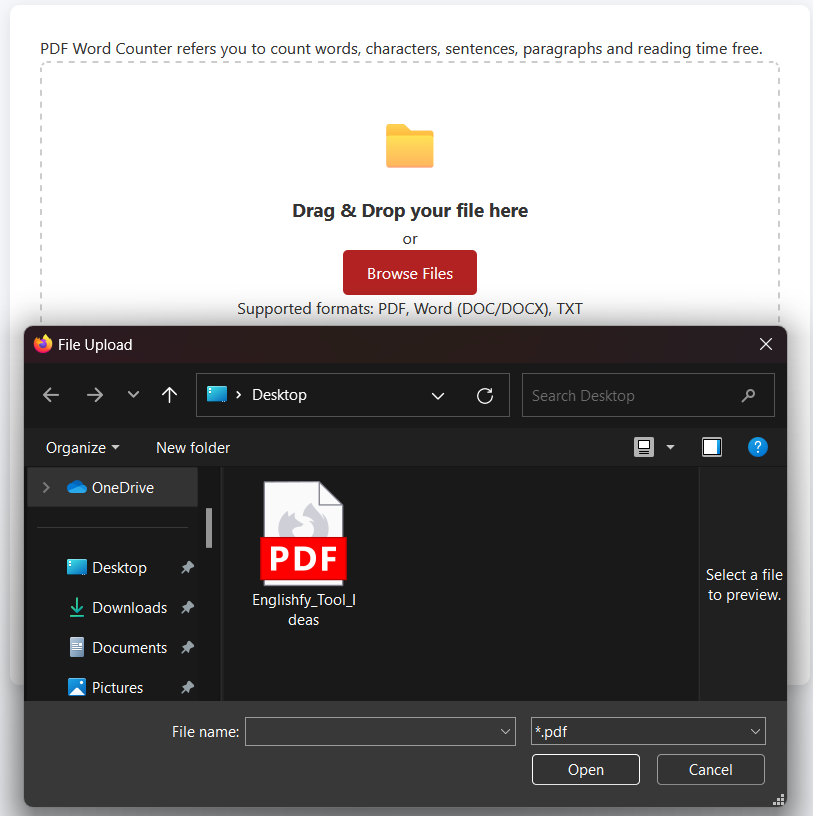
- Locate your document in File Explorer (Windows) or Finder (Mac)
- Drag the file and drop it onto the upload area of the tool
- Release the file to begin processing
The main sections include:
Header: An `<h1>` tag that displays “PDF to HTML Converter.”
Upload Area: A drag-and-drop zone or a file picker where you select your PDF file.
Convert Button: Disabled until a valid PDF is chosen.
Progress Bar: Shows real-time progress as the PDF is processed.
Loading Spinner: Indicates that the tool is working behind the scenes.
Result Area: Displays the converted HTML code and a live preview. It also has tabs for switching views.
Action Buttons: Let you copy, download, or clear the generated HTML.
Understanding the Results
After processing your document, the tool displays comprehensive statistics:
- Word Count: The total number of words in your document
- Characters (with spaces): Count including all characters and spaces
- Characters (no spaces): Count excluding spaces
- Sentences: Estimated number of sentences
- Paragraphs: Number of paragraphs (based on line breaks)
- Reading Time: Estimated time to read the content (based on 200 words per minute)
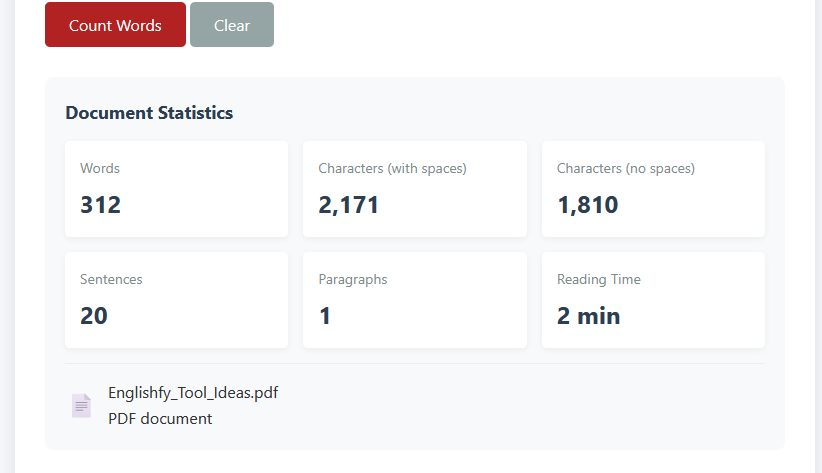
The results also show the filename and document type for reference.
Technical Details: How It Works
For PDF Files:
- The tool uses PDF.js, a JavaScript library that extracts text from PDFs
- It processes each page individually and combines all text
- Special formatting and images are ignored – only text content is analyzed
For Word Documents:
- The Mammoth.js library converts Word documents to plain text
- All formatting, images, and non-text elements are removed
- The resulting text is analyzed for statistics
Word Counting Logic:
- Splits text by whitespace to identify words
- Filters out empty strings that might result from multiple spaces
- Counts each remaining word segment
Character Counting:
- With spaces: Simply the length of the entire text
- Without spaces: Length after removing all whitespace characters
Sentence Detection:
- Splits text at punctuation marks (.!?) followed by whitespace or end of string
- Filters out empty segments
Paragraph Detection:
- Splits text at line breaks (\n)
- Counts non-empty segments
Tips for Best Results
- For accurate word counts:
- Remove any non-content elements (headers, footers) before uploading
- Be aware that some PDFs with complex layouts might not extract perfectly
- For academic work:
- Check if your institution counts words differently (some exclude certain elements)
- The tool provides both character counts to meet different requirements
- For writers:
- Use the reading time estimate to gauge your content length
- Monitor paragraph length for readability (optimal is 3-5 sentences per paragraph)
For each page:
It extracts the text content using `getTextContent()`.
It loops through all text items, capturing the actual text strings.
The converter wraps each page in a `<div class=”page”>` with its page number.
Each text item is output as a `<div class=”text”>` with inline `left` and `top` styles based on the PDF’s internal transform coordinates.
This approach attempts to preserve the text flow and basic layout. The output is not pixel-perfect like an image snapshot, but it’s lightweight, editable, and fully HTML-based.
Troubleshooting
Problem: The tool isn’t processing my file
- Solution: Ensure you’re using a supported file type (PDF, DOC, DOCX, TXT)
- Solution: Try a smaller file – very large documents might take longer
Problem: The word count seems inaccurate
- Solution: Some PDFs with scanned text or complex layouts may not extract perfectly
- Solution: Try converting to Word format first for better results
Problem: The tool is stuck on “Processing document…”
- Solution: Refresh the page and try again
- Solution: Check your internet connection (required for loading libraries)
Conclusion
Our Document Word Counter provides a simple yet powerful way to analyze your documents. With support for multiple file formats and detailed statistics, it’s an essential tool for writers, students, and professionals alike.
The intuitive interface makes it easy to get the information you need quickly, without any complicated setup or registration.
Frequently Asked Questions
Is my document content secure?
All processing happens in your browser – your documents never leave your computer.
Can I use this tool offline?
After initially loading the page, you can use it offline for text analysis. PDF and Word processing requires the initial library downloads.
What’s the maximum file size?
There’s no strict limit, but very large files (50+ MB) may cause performance issues.
Does it work on mobile devices?
The tool is fully responsive and works on smartphones and tablets.
Does it work on mobile devices?
Yes! The tool is fully responsive and works on smartphones and tablets.