Convert PDF to HTML online for free with our fast, easy-to-use tool. Get clean, responsive HTML code from any PDF file in seconds — no signup needed!
In today’s digital world, we constantly deal with PDFs — whether it’s ebooks, scanned documents, forms, or reports. However, sometimes we need to convert these static PDF files into editable, responsive, and web-ready HTML. You can also try pdf page organizer.
That’s exactly what this PDF to HTML Converter does: it lets you upload a PDF, extracts its text content, and generates an HTML version of your document within your browser — no server, no uploads, and no privacy risks.
Let’s break down exactly how this tool works, how it’s coded, and why it’s useful for students, developers, designers, and content creators.
Clean and Modern HTML Structure
This converter is built using HTML, CSS, and JavaScript, with PDF.js as the core PDF parsing library. The HTML structure is clean and semantic. It starts with a `<head>` section that sets the page charset, viewport, and page title.
Inside the `<body>`, there’s a container div that centers the whole tool on the page. The design follows modern UI trends: a centered card with subtle shadows, smooth hover states, rounded buttons, and clear call-to-action elements.
The main sections include:
Header: An `<h1>` tag that displays “PDF to HTML Converter.”
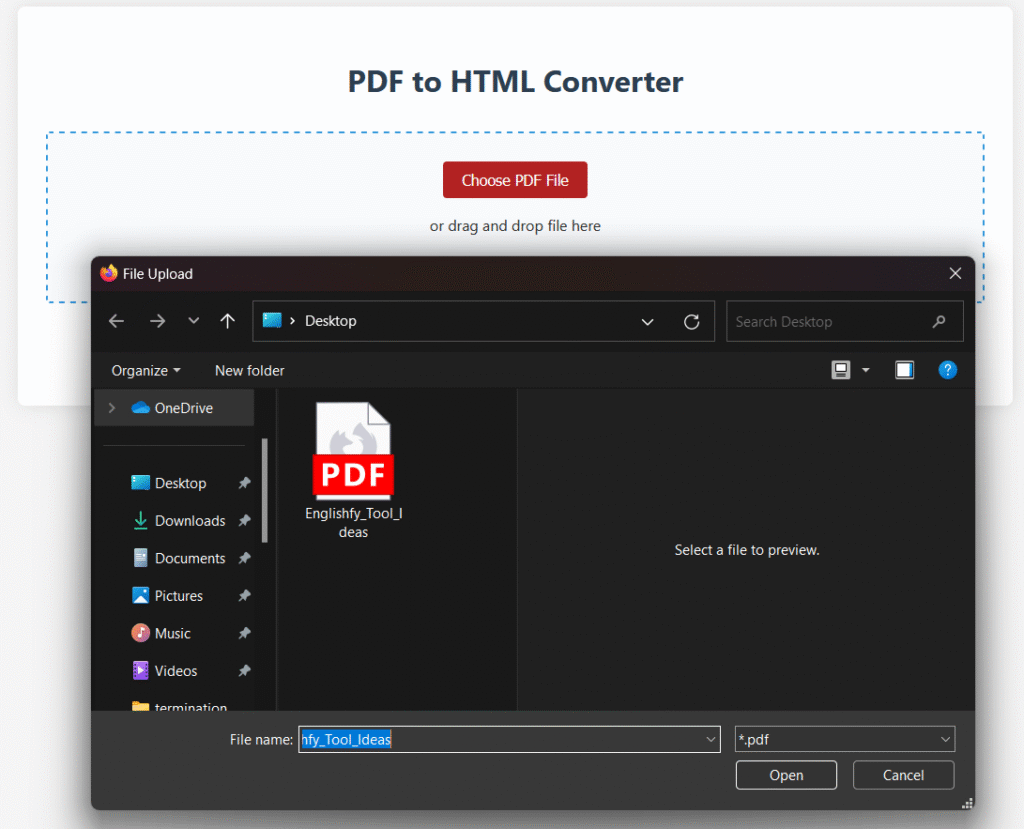
Upload Area: A drag-and-drop zone or a file picker where you select your PDF file.
Convert Button: Disabled until a valid PDF is chosen.
Progress Bar: Shows real-time progress as the PDF is processed.
Loading Spinner: Indicates that the tool is working behind the scenes.
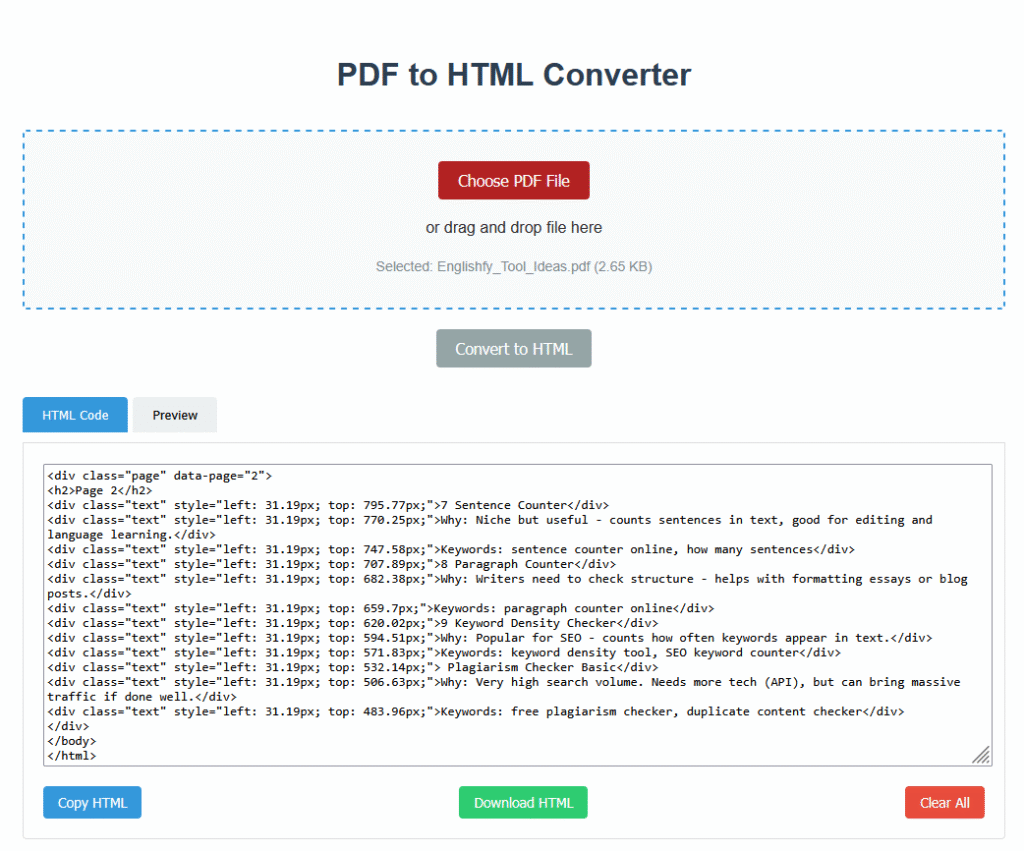
Result Area: Displays the converted HTML code and a live preview. It also has tabs for switching views.
Action Buttons: Let you copy, download, or clear the generated HTML.
Modern CSS Styling for Good UX
- The tool’s design uses a simple but modern style guide:
- A white content card on a light grey background for readability.
- Brand colors: sky blue (`#3498db`) for highlights and dark red (`#b22222`) for primary buttons.
- Clear hover effects and transitions for better interactivity.
- Drag-and-drop highlighting with dashed borders.
- A responsive layout that works well on desktop and tablets.
- These design choices make the tool user-friendly, easy to understand, and visually professional.
How does It Works
Click choose button and select your valid PDF file to be converted to HTML.
In second step, you will see HTML code below in box. You have further two options whether you can copy the resultant code of download complete file by clicking the button below. You can also clear the code box.
PDF.js: The Engine behind the Conversion
At the heart of this tool is PDF.js, an open-source JavaScript library by Mozilla that lets browsers read and render PDFs. The script is loaded from a CDN, and the worker path is set at the start of the script.
When you select a file, the tool reads the PDF as an ArrayBuffer using `FileReader`. PDF.js loads this buffer and parses it page by page.
For each page:
- It extracts the text content using `getTextContent()`.
- It loops through all text items, capturing the actual text strings.
- The converter wraps each page in a `<div class=”page”>` with its page number.
- Each text item is output as a `<div class=”text”>` with inline `left` and `top` styles based on the PDF’s internal transform coordinates.
- This approach attempts to preserve the text flow and basic layout. The output is not pixel-perfect like an image snapshot, but it’s lightweight, editable, and fully HTML-based.
Real-Time Feedback with Progress Bar and Spinner
To improve user experience, the converter provides real-time feedback. When the conversion starts, the progress bar appears and updates based on the pages processed. There’s also a loading spinner to reassure the user that the app is working.
Once done, the spinner hides, the results show up, and the user can view the raw HTML or a live preview. Smooth scroll behavior focuses the user’s attention on the results area.
Handy Features: Copy, Download, Clear
This tool isn’t just about converting — it also makes the output easy to use.
Copy HTML: With one click, the entire HTML output is selected and copied to the clipboard. A temporary “Copied!” feedback message shows success.
Download HTML: The tool generates a downloadable `.html` file named after the original PDF file. This uses the Blob API and `URL.createObjectURL` — all handled client-side.
Clear All: Users can reset the tool to its initial state, clearing the file input, output, and progress.
These simple but essential controls make the converter practical for real workflows.
Privacy-Friendly and Offline-Ready
One major advantage of this tool is that it works entirely in the browser. No PDF files are uploaded to any server. All processing happens locally using JavaScript and the PDF.js library. This makes the tool privacy-friendly, secure for sensitive files, and even usable offline if you save the HTML file and the PDF.js library locally.
Easy Drag-and-Drop or Click-to-Upload
The upload area supports both traditional file selection via a hidden `<input type=”file”>` and modern drag-and-drop. When you drag a file over the area, the border highlights to signal that the drop is accepted. Once dropped, the file info updates, and the convert button is enabled.
Tabs for Code and Preview
Many PDF to HTML tools just give you raw code. This one also gives you a Preview tab that renders the HTML directly. The tabs are controlled by simple JavaScript that toggles active states and switches between tab content sections. This lets you check how your converted content might look on a web page.
Smart Error Handling
If a user tries to upload a non-PDF file, the tool shows an alert and resets. If anything goes wrong during conversion, a `try…catch` block handles the error gracefully, logs it for debugging, and notifies the user.
Simple, Extensible, and Educational
This converter is a great example of how a powerful tool can be built with just HTML, CSS, and JavaScript — no frameworks needed. The logic is clear and easy to follow for anyone learning how to work with PDFs, the FileReader API, PDF.js, and client-side blob downloads.
The output HTML could be extended with more sophisticated layout features, images, and CSS styling to improve fidelity. Developers can modify the template to match their website or export format needs.
Who Can Use This?
- Students can extract text from lecture PDFs and edit it easily.
- Writers can repurpose old PDF ebooks for blogs or web articles.
- Web designers can convert PDF layouts to simple HTML templates.
- Researchers can archive scanned documents as text-friendly web pages.
- Teachers can generate HTML versions of lesson plans.
Final Thoughts
A PDF to HTML Converter like this is a must-have tool for anyone who needs to transform static documents into web-friendly, editable content. It respects your privacy by running 100% in your browser, has a clean modern UI, and uses battle-tested open-source technology. You can also add page numbers on PDF file.
FAQs About the PDF to HTML Converter
The visitors may have the following questions in their mind. So, let us talk about some frequently asked questions with answers.
How do I use this PDF to HTML Converter?
Just click the “Choose PDF File” button or drag and drop your PDF into the upload area. Once selected, click “Convert to HTML” and wait for the tool to process your file.
Is my PDF file uploaded to any server?
No — this tool works 100% in your browser. Your PDF file is never uploaded or stored anywhere.
What happens to images in my PDF?
Currently, this converter mainly extracts and converts the text content of your PDF into HTML. Images are not fully supported yet, but you can copy them manually if needed.
Can I edit the HTML after converting?
Yes! The converted HTML is fully editable. You can copy it, tweak it in any code editor, or paste it into your website or CMS.
Does this tool work on mobile devices?
Yes, this converter works in modern browsers on desktops, laptops, and most smartphones and tablets.